Troubleshooting
This guide covers common errors users encounter with the Gamearena remote game streaming service, which lets you connect to your remote gaming PC from anywhere.
Don't have Gamearena installed yet? Download the host application from app.gamearena.tech/downloads and install it on the remote PC you want to connect to.
Host Errors
Host errors occur on the remote PC where Gamearena is installed. If you haven't installed the host application yet, download it from app.gamearena.tech/downloads.
Host Incompatible / Nvidia Error
This error appears when the host PC's graphics drivers or display configuration prevent Gamearena from initializing the video encoder.
Fix:
-
Disable HDR in Windows display settings
- Go to Settings → System → Display and turn off HDR.
-
Update your Nvidia drivers to the latest version
- Download and install from the official Nvidia driver page.
-
Run Windows Update to ensure your system is current
- Settings → Windows Update → Check for updates.
-
Verify OBS works on the same machine
- If OBS can capture and encode video without errors, Gamearena should also work.
Client Errors
Client errors occur on the device you're using to connect to your remote PC.
Decoder Error
The decoder error appears when the client device cannot decode the video stream from the host.
Fix:
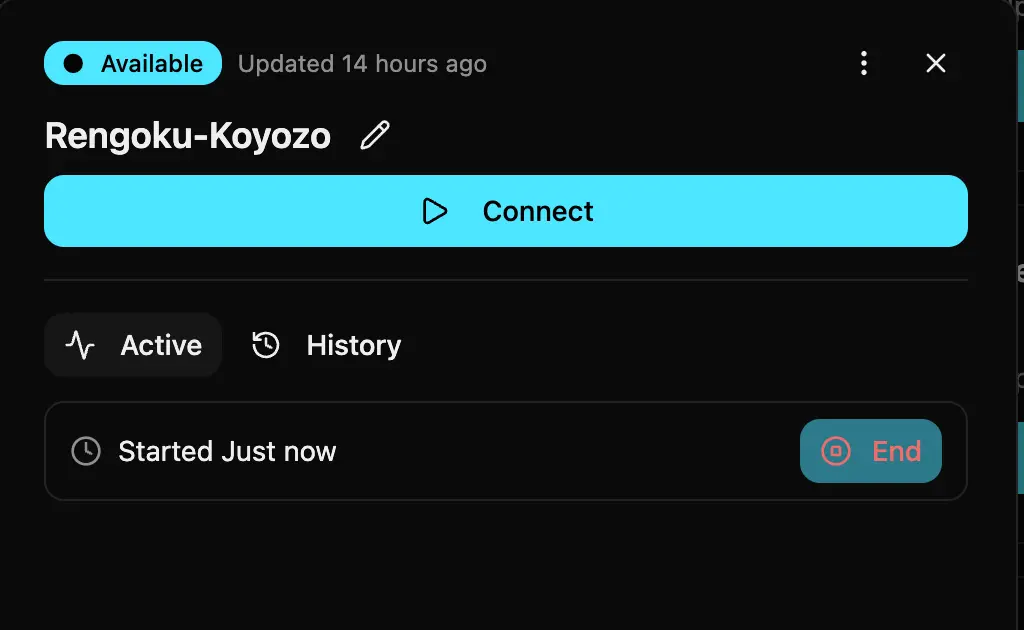
- End all active sessions for your account and reconnect.
-
Reconnect from the failing device first before any other device joins.
-
In multiplayer scenarios, all users connect to the H.264 encoder. If a decoder error occurs mid-stream:
- Gamearena home → settings → advance setting → encoder → H.264
- Reconnect to the device
- Restart the host server if the issue persists
WebRTC ICE Connection Failed
This error indicates that WebRTC could not establish a peer-to-peer connection between the client and the host.
Fix:
-
Update Gamearena host to the latest version on the remote PC.
-
For demos on protected/corporate networks:
- Use the temporary build to bypass restrictions
-
For production use on protected networks:
- A relay server must be added
- Relay access is available for paying customers only
Unstable Connection
An unstable connection causes lag, frame drops, or disconnects.
Fix:
- Switch to a 5GHz Wi-Fi network
- Lower stream quality to 720p
- Move closer to the router
- Prefer a wired LAN connection
- Always keep the host PC on LAN
- Test using the Cloudflare Speed Test
A ping under 50ms and jitter under 10ms usually delivers a smooth streaming experience.
Common Procedures
Update Gamearena Host
Option 1 — From Host PC
- Open Gamearena on the host PC
- Go to Host → About → Check for updates
- Click Install if an update is available
Option 2 — From Client Device
- Open Gamearena on your client device
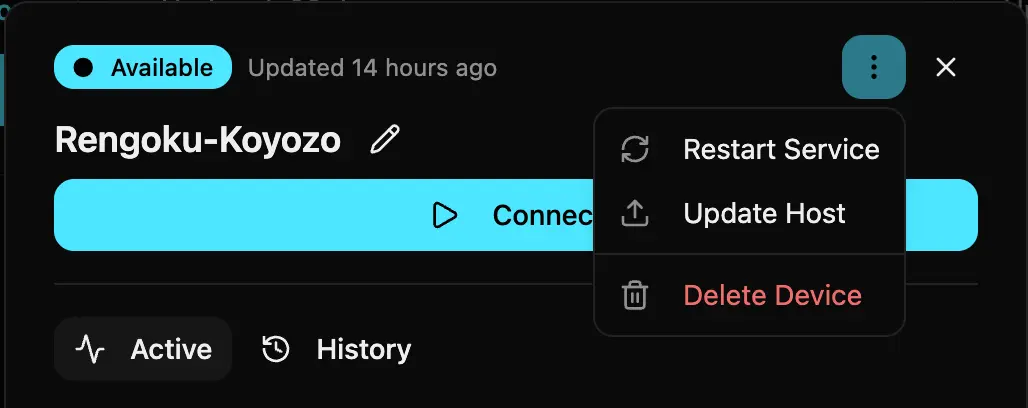
- Locate the device card
- Open the device
- Click the kebab icon (⋮)
- Select Update host
Restart Host
If the host service is unresponsive or you need a clean restart:
- Open Gamearena on your client device
- Locate the host device card
- Open the device
- Click the kebab icon (⋮)
- Select Restart service
Windows PC Configuration
Some Windows network defaults block the connections Gamearena needs to function correctly.
Fix:
- Set your network type to Private
- Settings → Network & Internet → Active Connection → Network Profile Type → Private
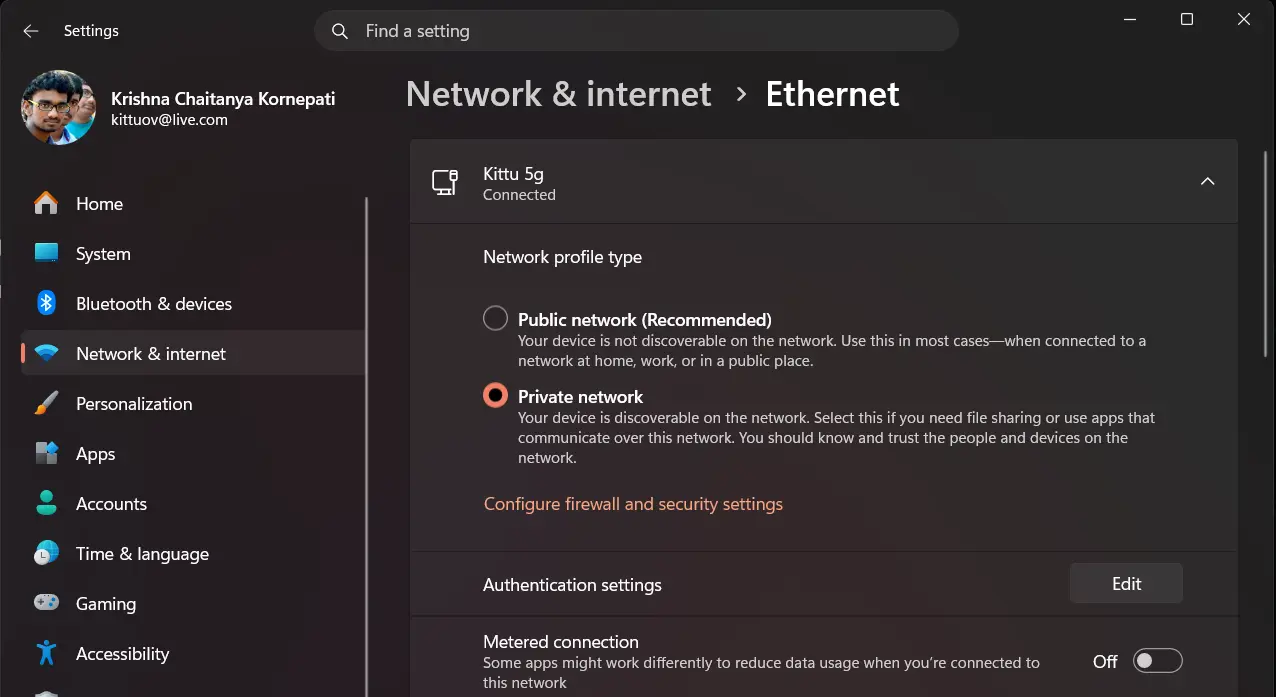
A Public network profile applies stricter firewall rules and can block peer-to-peer traffic and local discovery.
Still Need Help?
If your issue isn't resolved:
- Confirm the host PC has Gamearena installed
- Verify both client and host are on the latest version
- Run the Cloudflare speed test
- Share network statistics with support