How to Connect Your Gamepad in Gamearena
Published: July 29, 2026
Gamearena streams your physical gamepad from your local device to your remote gaming PC, so you can play with the controller you love — even from a phone, tablet, or laptop.
In this guide, we'll walk you through the steps to connect your gamepad so you can start playing without a hitch. Let's dive in!
Before you begin: Make sure the virtual gamepad driver is installed on your host PC (the Windows machine running the Gamearena Streamer app). Open the Gamearena Streamer app, go to Settings > Install Virtual Gamepad, and follow the on-screen prompts to install the driver. This only needs to be done once — after installation, the driver runs automatically whenever the Streamer is active.
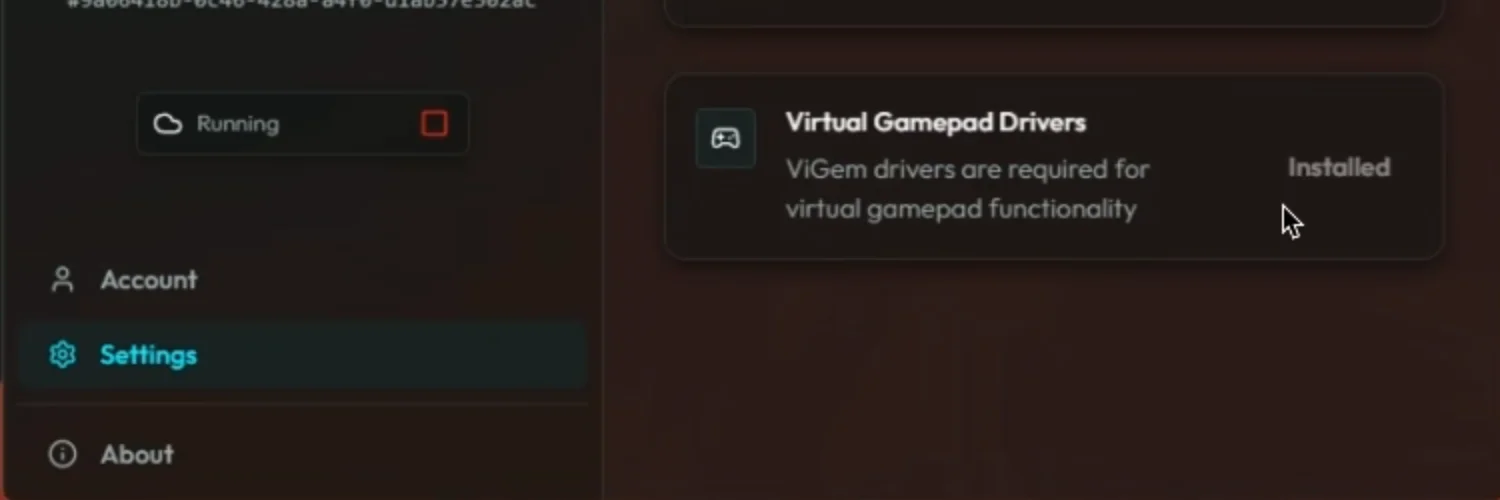
Step 1: Connect Your Gamepad to Your Local Device
Connect your physical gamepad to the device you're streaming from (phone, tablet, or laptop) using USB or Bluetooth.
Option 1: Bluetooth Connection
- Turn on your gamepad and put it in pairing mode (usually by holding down the pairing button).
- On your device, go to Bluetooth settings and search for available devices.
- Select your gamepad from the list and confirm pairing.
Option 2: USB Connection
- Simply plug your gamepad into your device using a USB cable.
- It should be recognized instantly.
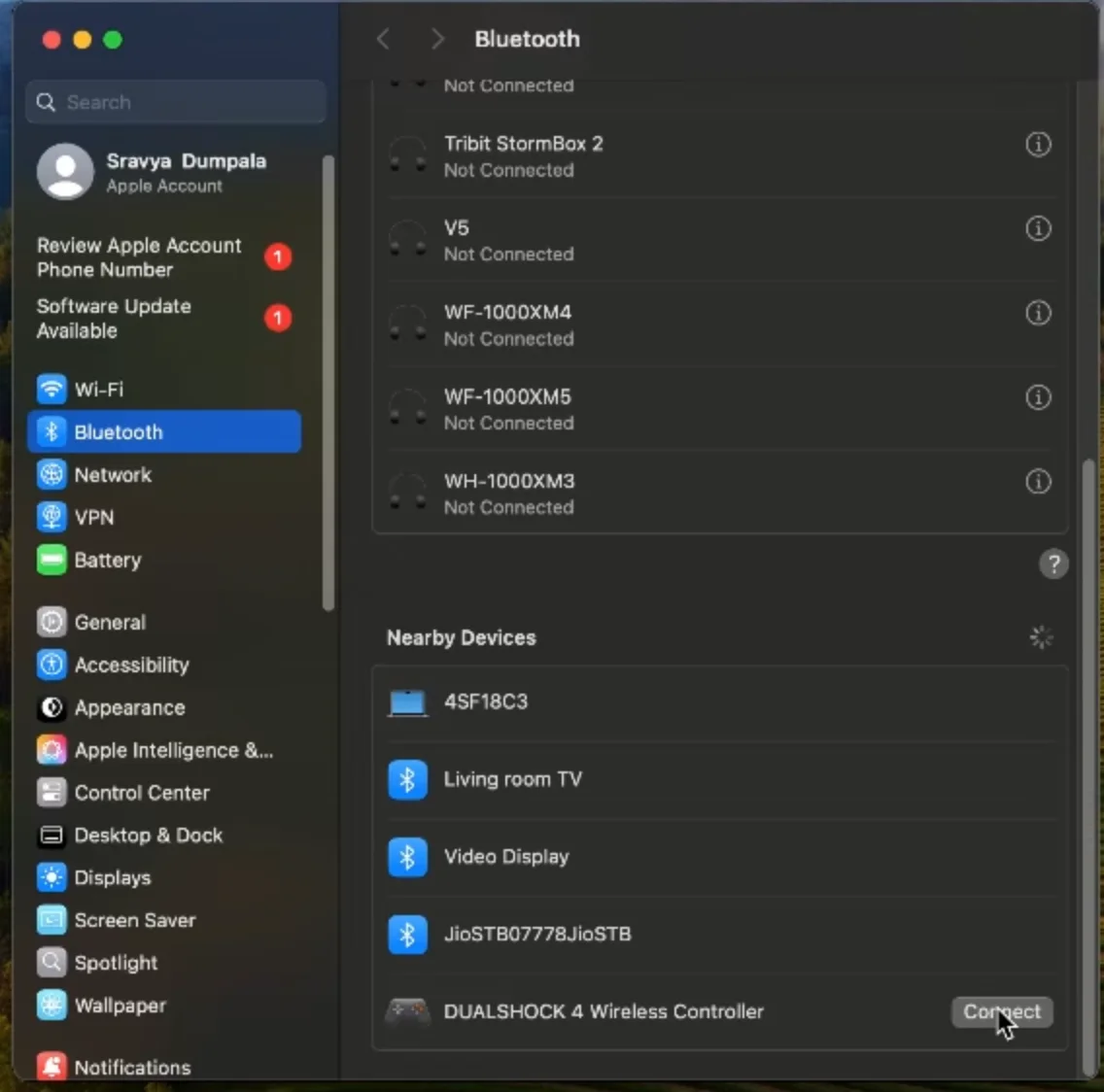
Step 2: Press Any Button on the Gamepad
With your gamepad connected to your local device, it's time to link it to your remote PC.
- Start streaming a game in Gamearena from your local device.
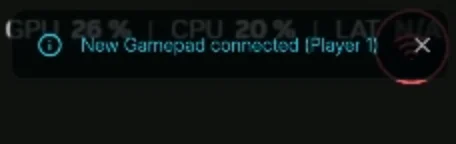
- Press any button on your physical gamepad — this connects it to your remote PC through the virtual driver.
Once you press a button, a notification will appear confirming that your gamepad is now connected. Your gamepad inputs are now being transmitted to your remote gaming PC via the virtual gamepad driver.
Auto-Connect for Future Sessions
Don't want to go through this every time? Enable Auto-Connect Gamepad in the overlay gamepad settings, and Gamearena will automatically detect and connect your gamepad in future sessions.
Troubleshooting
Test Your Gamepad in Overlay Settings
If buttons or sticks aren't responding, verify that all controls are working correctly:
- While streaming, open the overlay.
- Tap the Gamepad icon to open gamepad settings.
- Test each button, trigger, and analog stick — the on-screen display will light up as you press each control.
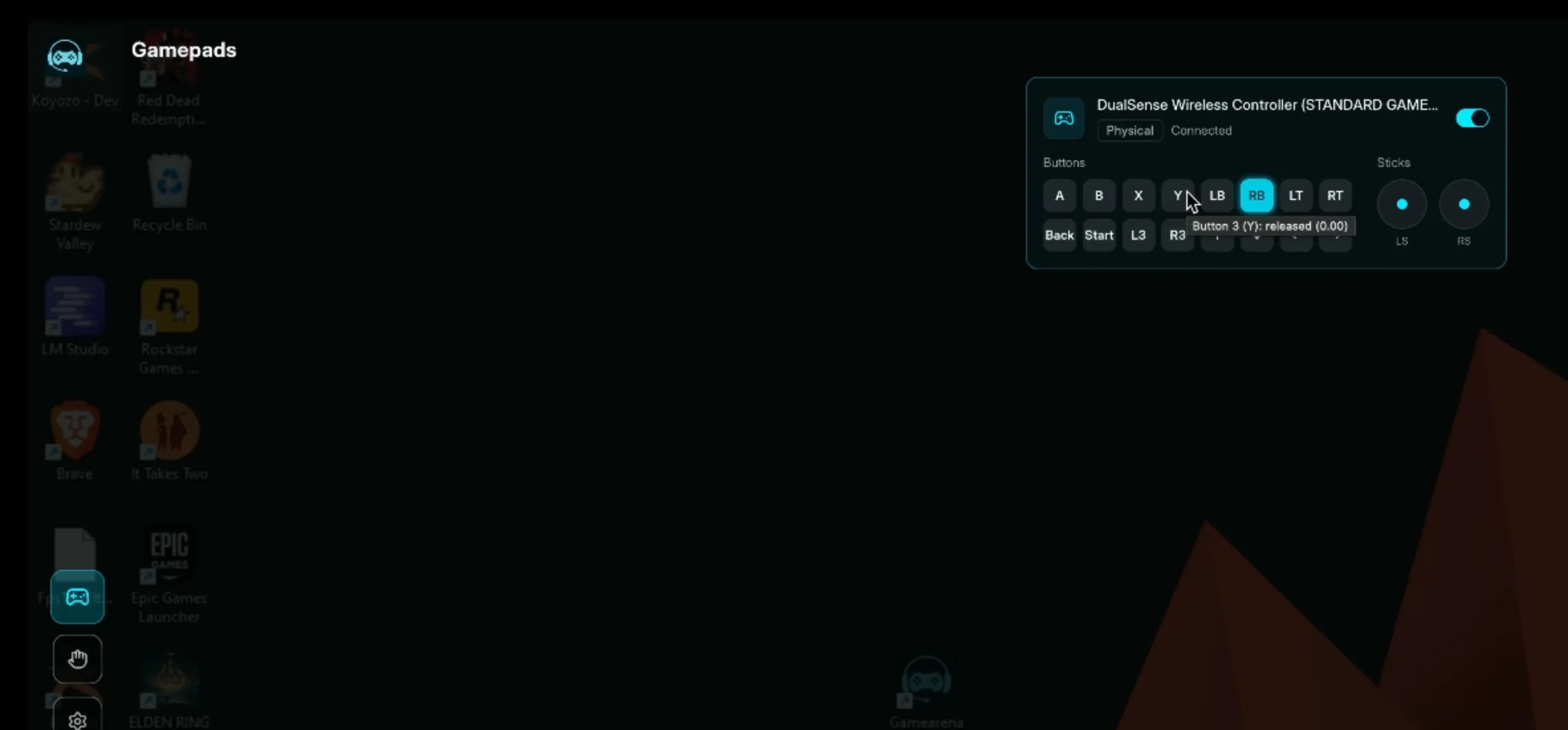
If any button isn't responding, check that your gamepad is properly paired with your local device (Step 1) and that the virtual driver is installed on the host PC.
Tips for a Smooth Experience
✅ Keep your gamepad charged — low battery can cause lag or disconnections during wireless use.
✅ Stay in range — Bluetooth works best within 10 meters (30 feet) of your local device.
✅ Check the virtual driver — if the gamepad isn't recognized by the remote PC, re-run Install Virtual Gamepad in the host Streamer settings.
✅ Test before you play — use the overlay's gamepad test screen to confirm everything works before starting a game.
Ready, Set, Play!
That's it! Your physical gamepad is now connected through Gamearena to your remote gaming PC. Whether you're battling foes or racing through tracks, you're all set for an epic gaming session.