Get Started with Gamearena
Gamearena streams your PC games to any device with ultra-low latency — 4K at 60+ FPS, gamepad support, and multi-device compatibility.
Setup video: Watch the guide on YouTube
Requirements
| What | Need |
|---|---|
| Host PC | Windows desktop or laptop with latest updates installed |
| GPU | NVIDIA GTX 970 or newer, latest Game Ready Driver |
| Browser device | Any device — desktop, tablet, or phone |
Laptop users: Laptops with an NVIDIA dedicated GPU (DGPU) are supported. If you have a hybrid GPU laptop (integrated + dedicated), enable dedicated GPU (DGPU) only mode in the NVIDIA Control Panel for best performance.
Pre-Installation Checklist
Before installing the streamer:
- Update Windows — Go to Settings > Windows Update > Check for Updates. Install all cumulative and .NET Framework updates, then reboot.
- Update NVIDIA drivers — Use the NVIDIA App or GeForce Experience to install the latest Game Ready Driver.
- Clean install if you see a black screen — Re-run the driver installer and select Custom > Perform a Clean Installation.
Step 1: Download & Install the Streamer
- Download the Gamearena Streamer App.
- Open the installer and follow the on-screen instructions.
- Launch the app after installation.
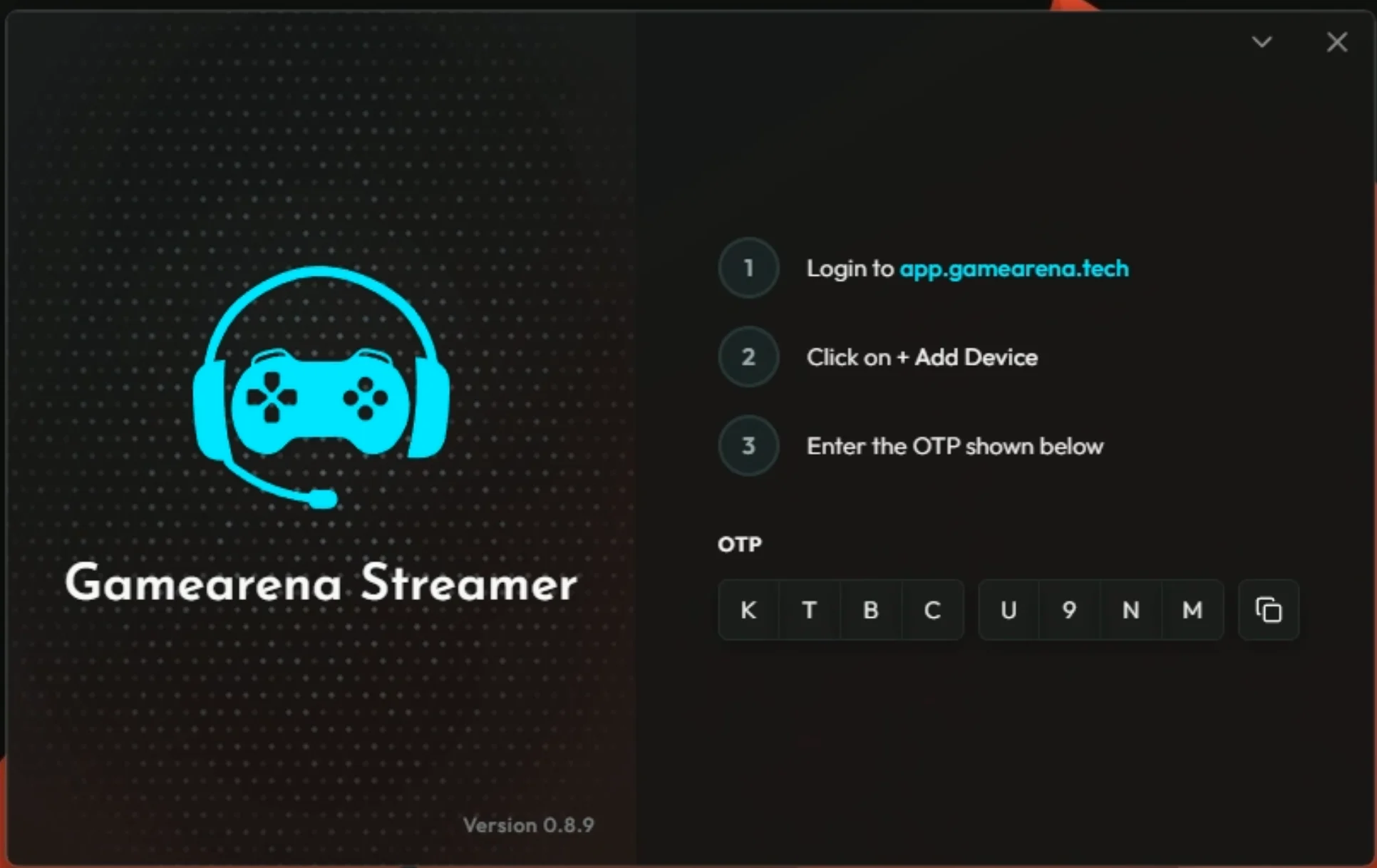 After installation, launch the streamer app — the host screen displays a one-time OTP code.
Step 2: Sign Up / Log In
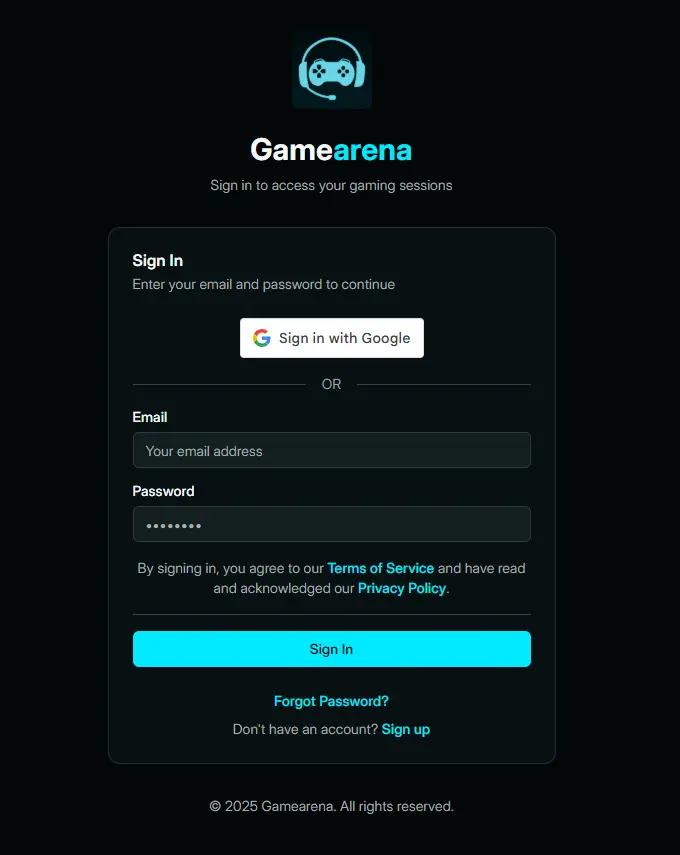
- Go to app.gamearena.tech on any device.
- Create an account or log in.
Step 3: Connect Your Device
Your account links everything - a new device pairs once with a code, then it's just log in and connect.
- On another device (phone, tablet, or laptop), open a browser and go to app.gamearena.tech.
- Log in with the same account you used on the Streamer.
- Click "Add a Device".
- Enter the OTP code shown on your host PC's streamer app.
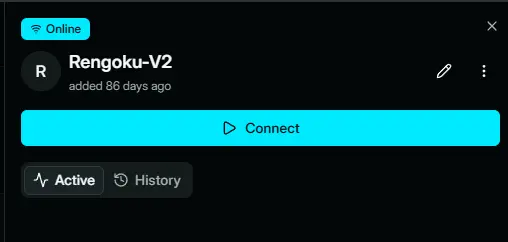
- Click Connect to pair your device. It's linked for good - next time, just log in and select your PC.
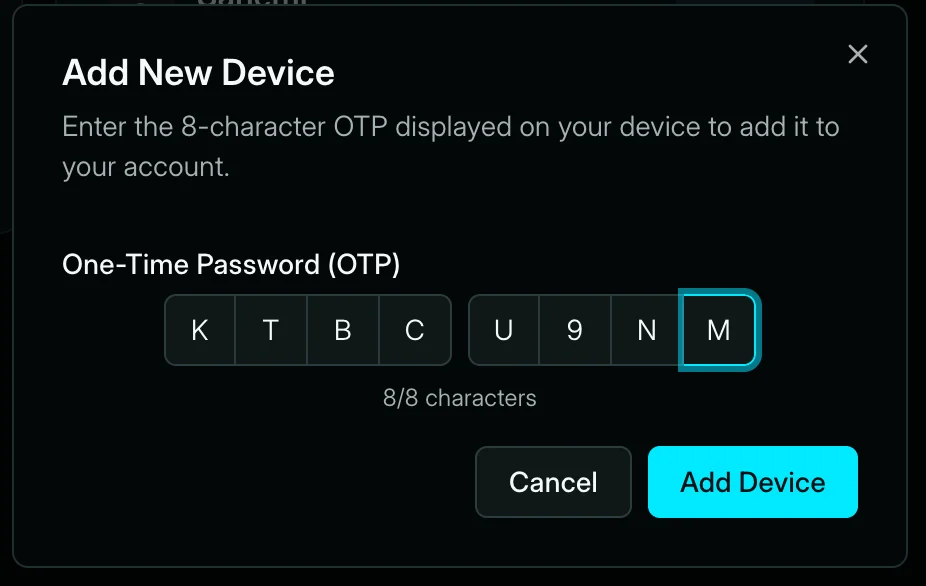 Enter the one-time code on the website to pair a new device - once per device.
Step 4: Start Gaming
Your PC is now connected. Open any game and stream it to your paired device.
For gamepad support: go to Settings > Install Virtual Gamepad.
Install the Gamepad Driver in Settings
To use a gamepad with Gamearena, install the virtual gamepad driver on your host PC from the Streamer app's settings.
- On your host PC, open the Gamearena Streamer app.
- Go to Settings > Install Virtual Gamepad.
- Follow the on-screen prompts to install the driver.
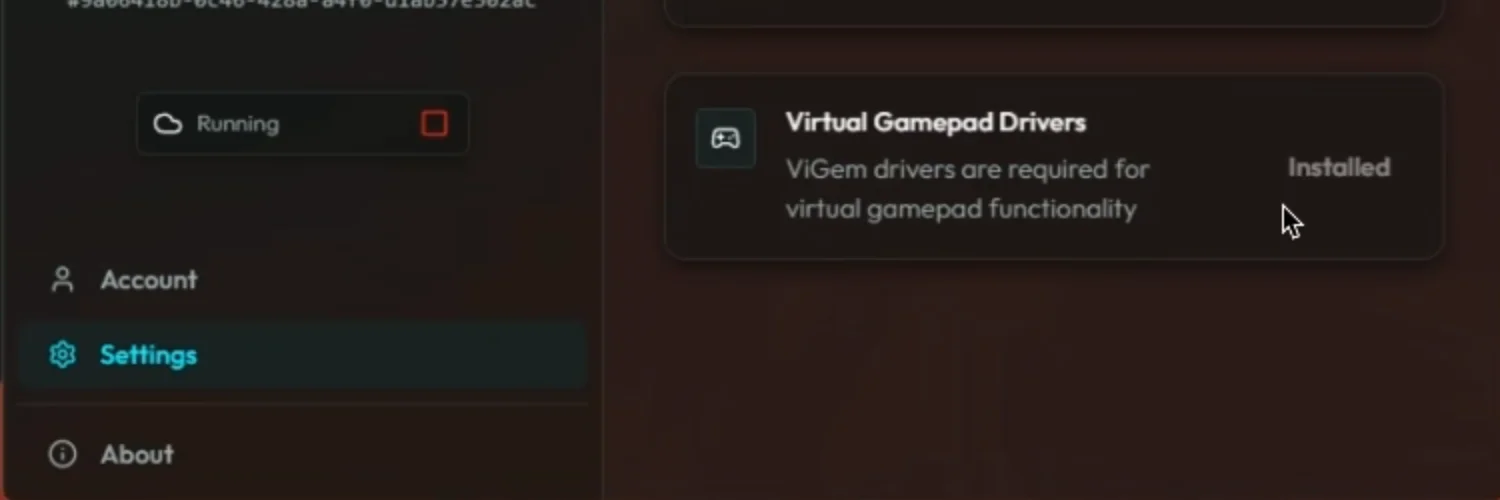
After installation, the driver runs automatically whenever the Streamer is active — you only need to do this once.
Frequently Asked Questions
What are the minimum requirements? A Windows PC (desktop or laptop) with an NVIDIA GTX 970 or newer, updated Windows, and the latest NVIDIA Game Ready Driver.
Can I use a laptop? Yes — Windows laptops with a dedicated NVIDIA GPU are supported. On hybrid GPU laptops, enable dedicated GPU (DGPU) only mode for best performance.
Do I need an NVIDIA GPU? Yes. The streamer uses NVIDIA's hardware encoder (NVENC) for frame capture and streaming. Both desktop and laptop NVIDIA GPUs are supported.
What devices can I stream to? Any device with a browser — desktop, tablet, or phone — that's paired with your gaming PC through app.gamearena.tech.