Gamearena Settings: Dashboard & Stream Settings Configuration Guide
Gamearena has two settings surfaces: Gamearena Settings (web dashboard) and Stream Settings (in-session overlay). Both offer Simple mode (curated presets) and Advanced mode (independent, granular controls).
Gamearena Settings
Found on the web dashboard under My Devices → Stream Settings. Applies to a device before you start a session.
Simple Mode
Beginner-friendly, minimal config. Pick a Display and Quality preset — bitrate and framerate are set automatically.
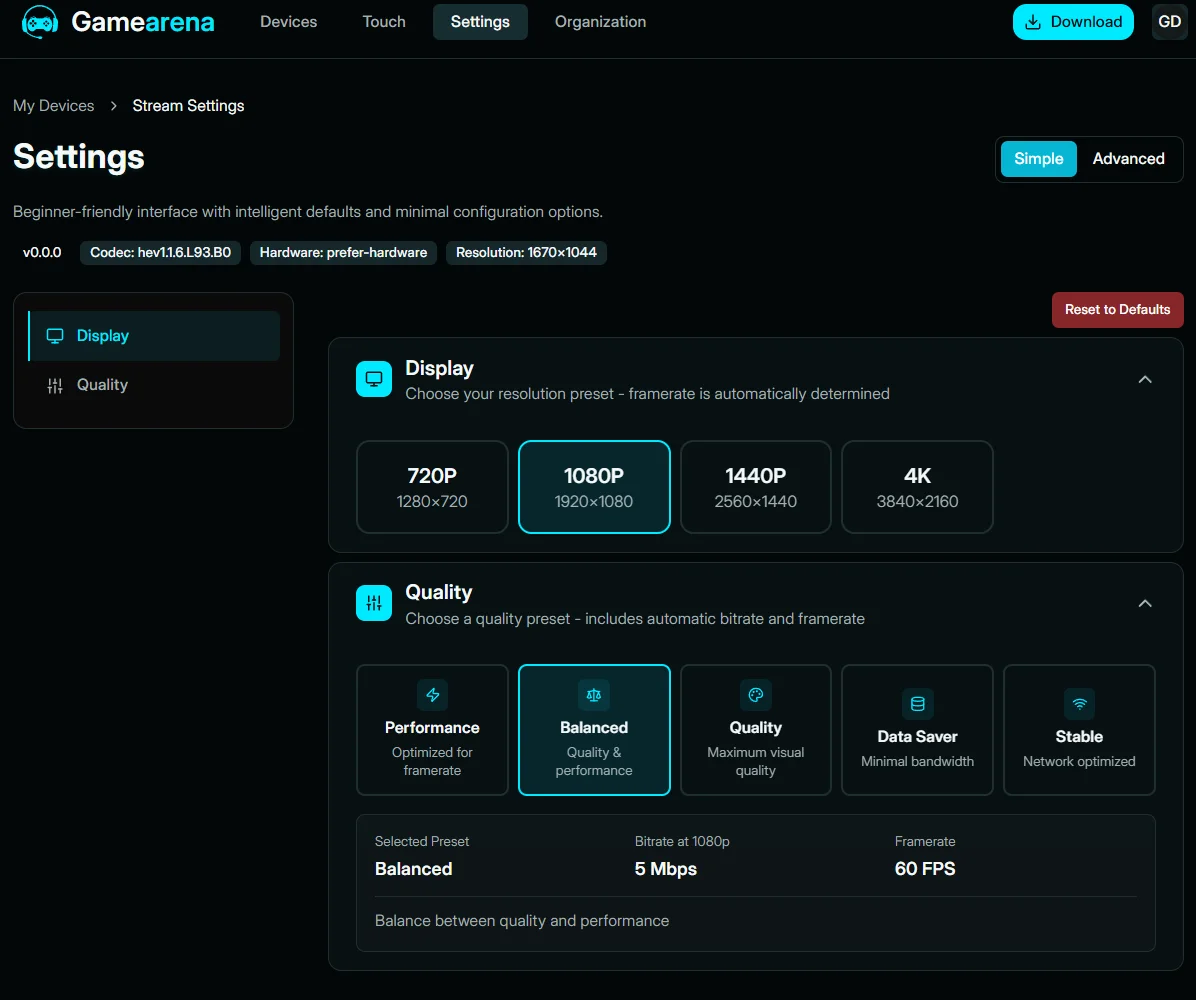
| Setting | Description |
|---|---|
| Display | Sets your stream resolution |
| Quality Preset | Sets the balance between quality and performance |
Advanced Mode
Same base controls as Simple, plus independent, granular add-ons for power users:
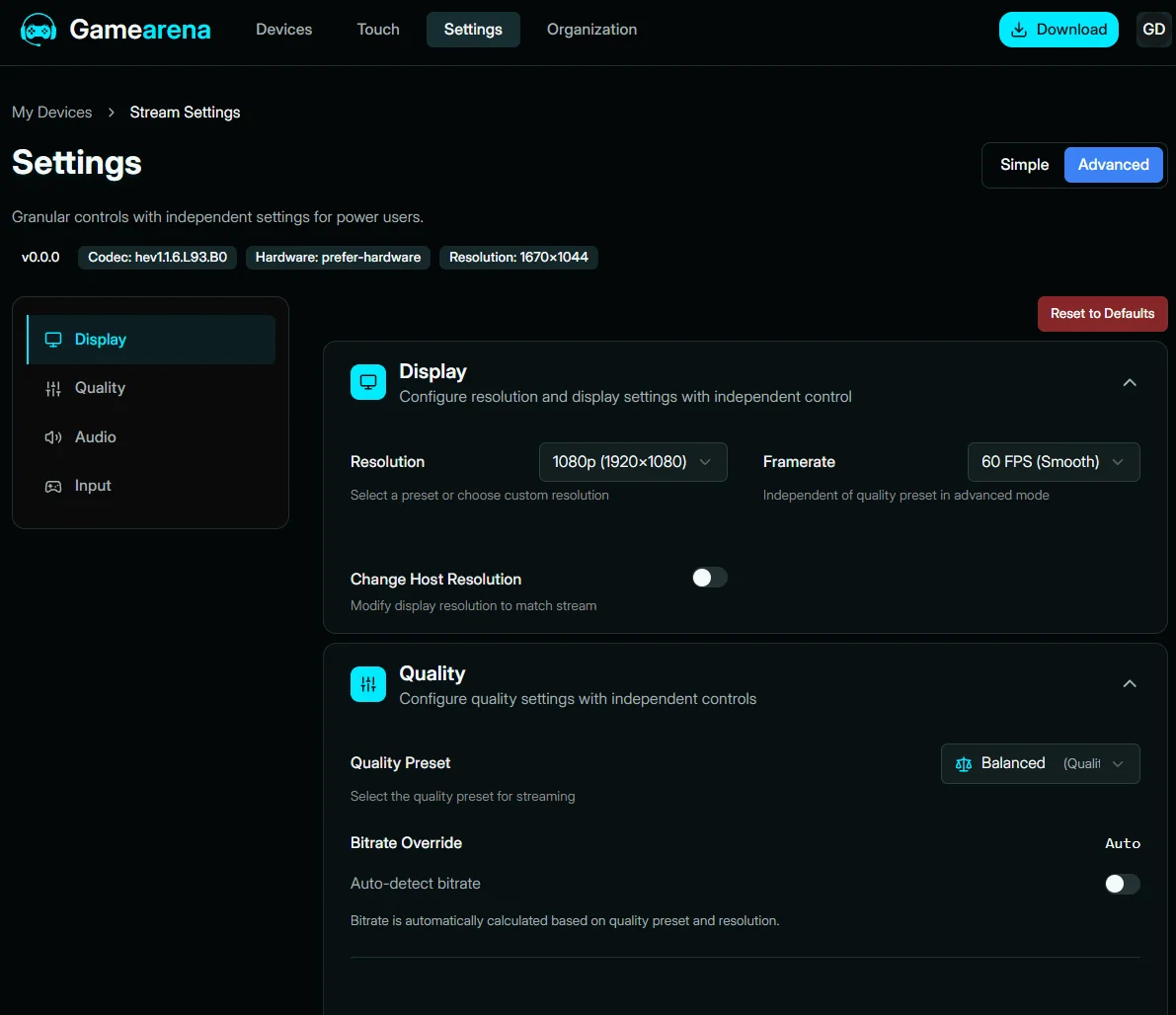
| Add-on | Description |
|---|---|
| Framerate | Set independently from the quality preset |
| Change Host Resolution | Match the host's display resolution to the stream |
| Bitrate Override | Manually set bitrate, skipping auto-detect |
| Encoder Settings | Choose Codec, NVENC Preset, and Color Format |
| Decoder Settings | Hardware Acceleration and Buffer Preset for decoding |
| Audio | Master Volume control |
| Input | Mouse Sensitivity, Scroll Sensitivity, plus Touch Input: Cursor Speed, Scroll Speed, Tap Sensitivity, Drag Deadzone, Natural Scrolling |
| Touch Profiles | Quick link to manage your custom touch layouts |
| Keyboard Shortcuts | Keyboard + gamepad bindings for Toggle Overlay, Toggle Performance Stats, Toggle Fullscreen, and Disconnect Stream |
Toggle Simple/Advanced anytime via the top-right switch on the Settings page. Selections carry over between modes where applicable.
Stream Settings
Available inside an active session, via the overlay menu — adjust quality or input without disconnecting.
Simple Mode
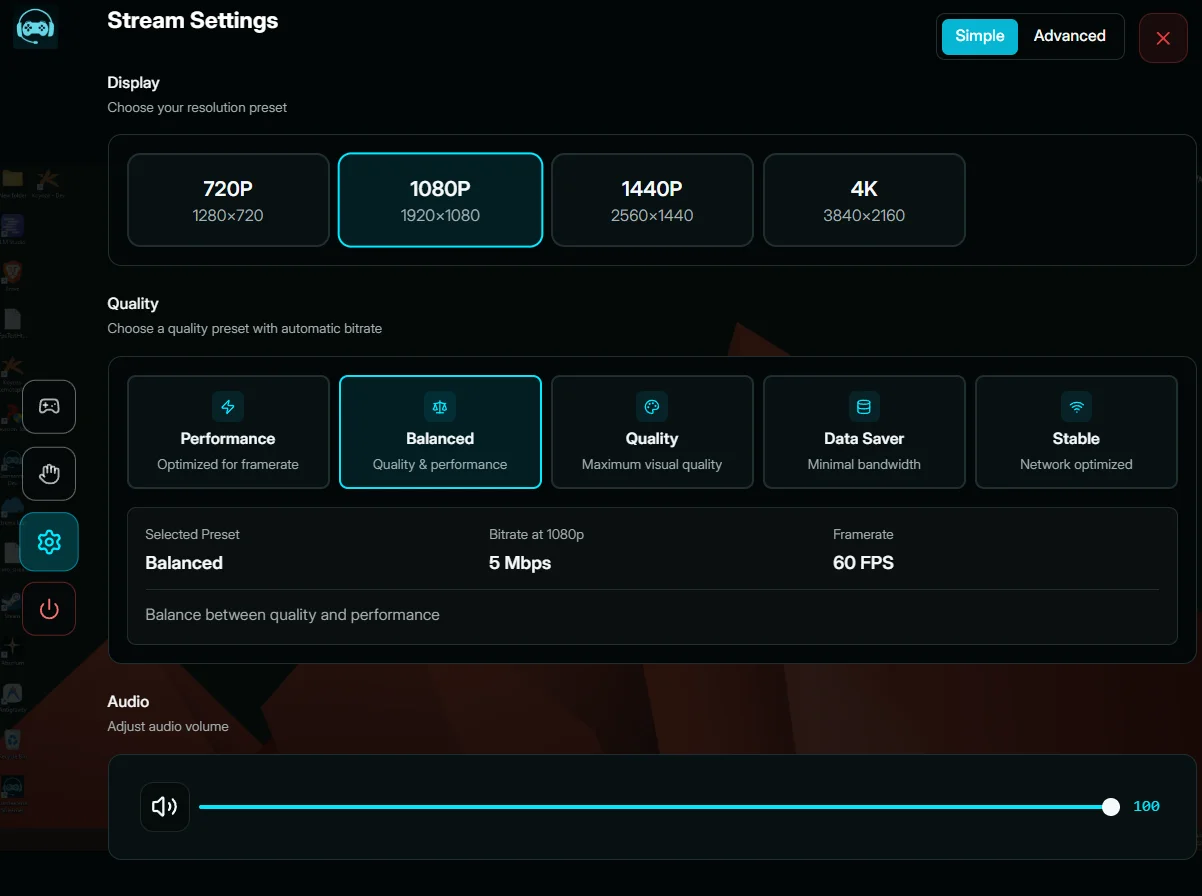
Same Display/Quality presets as the dashboard's Simple mode, plus Audio volume — no need to leave your stream.
Advanced Mode
Same base controls as Simple, plus independent, granular add-ons:
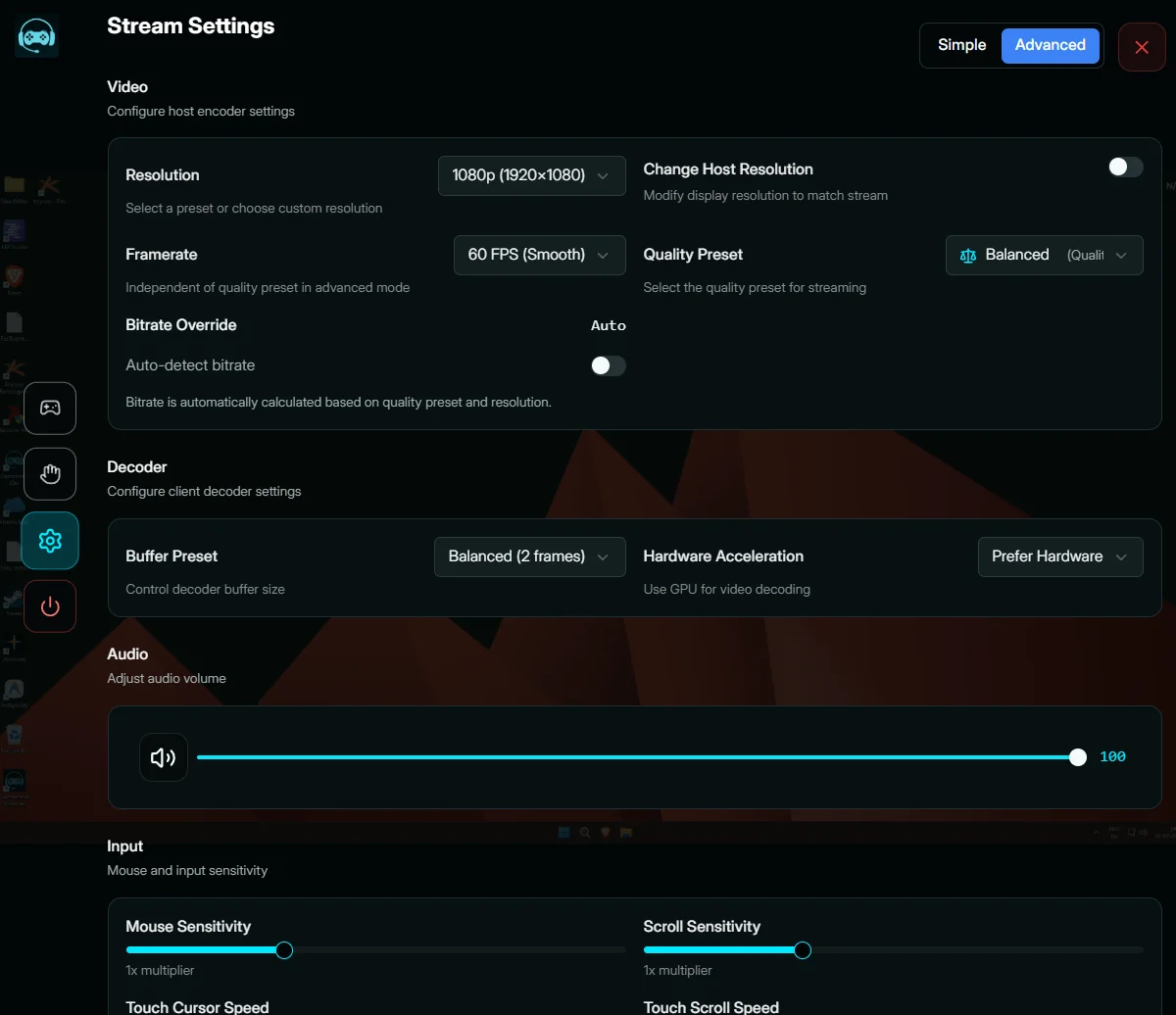
| Add-on | Description |
|---|---|
| Framerate | Set independently from the quality preset |
| Change Host Resolution | Match the host's display resolution to the stream |
| Bitrate Override | Manually set bitrate, skipping auto-detect |
| Decoder | Buffer Preset and Hardware Acceleration |
| Input | Mouse Sensitivity, Scroll Sensitivity, Touch Cursor Speed, Touch Scroll Speed, Tap Sensitivity, Drag Deadzone, Natural Scrolling |
| Shortcuts | Keyboard + gamepad bindings for Toggle Overlay, Toggle Performance Stats, Toggle Fullscreen, and Disconnect Stream — with Record/Clear per binding |
Open the overlay in any session, tap the gear icon for Stream Settings. The red icon closes the overlay, not the session.
Frequently Asked Questions
Where do I change stream quality?
Before a session: web dashboard → My Devices → Stream Settings. During a session: overlay menu → gear icon → Stream Settings.
What's the difference between Simple and Advanced mode?
Simple mode picks bitrate and framerate for you from presets. Advanced mode sets them independently and adds encoder, decoder, input, and shortcut controls.
Can I change settings mid-session?
Yes — open the overlay and tap the gear icon. Stream Settings adjusts quality and input live, without disconnecting.
Can I set custom keyboard or gamepad shortcuts?
Yes — under Keyboard Shortcuts (dashboard) or Shortcuts (Stream Settings Advanced mode), record a custom binding for actions like toggling the overlay or disconnecting.